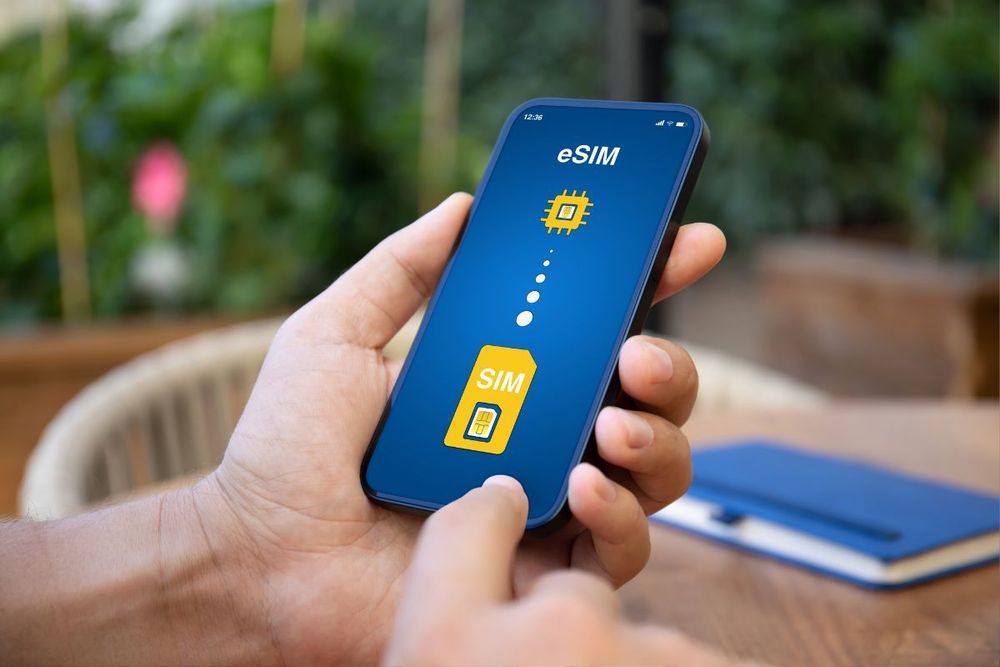











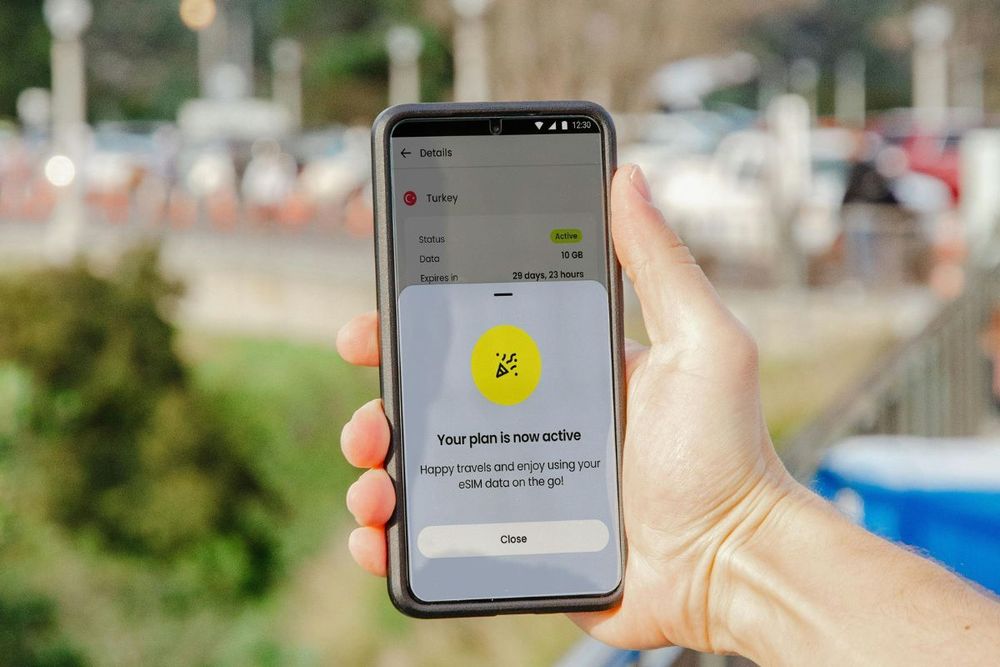
How to Set Up an eSIM: Step-by-Step Guide for iPhone and Android
Yes, you can set up an eSIM yourself, and it usually takes about five minutes. There is no store visit, no SIM tray and no paperclip: you install a digital profile straight onto your phone. This guide walks you through the exact steps for iPhone, Samsung Galaxy and Google Pixel, then covers what to do if something goes wrong.
What You Need Before You Start
- An eSIM-compatible, unlocked phone: Most iPhones from the XS onwards, recent Samsung Galaxy models and Google Pixel phones support eSIM. Your phone also needs to be carrier-unlocked to use an eSIM from another provider.
- Your QR code or activation details: Your provider sends these after purchase, usually by email or in their app.
- An internet connection: Your phone downloads the eSIM profile online, so stay on Wi-Fi or mobile data during setup.
How to Check if Your Phone Supports eSIM
- iPhone: Go to Settings > Cellular (or Mobile Service). If you see "Add eSIM" or "Add Cellular Plan", your iPhone supports eSIM.
- Android: Go to Settings and search for "SIM". If you see an option to add or download an eSIM, your phone supports it.
- Any phone: Dial *#06#. If an EID number appears, your phone supports eSIM.
How to Set Up an eSIM on iPhone
- Open Settings > Cellular (called Mobile Service in some regions).
- Tap Add eSIM (on older iOS versions: Add Cellular Plan).
- Choose Use QR Code and scan the code from your provider, or tap Enter Details Manually to type in the activation details.
- Tap Continue and wait while the eSIM downloads.
- Give the new line a clear label, such as "Travel", so it is easy to tell apart from your main number.
- Choose which line to use for calls, messages and mobile data.
How to Set Up an eSIM on Samsung Galaxy
- Open Settings > Connections > SIM manager.
- Tap Add eSIM.
- Tap Scan QR code from service provider and scan your code, or choose the option to enter an activation code.
- Confirm, then wait for the eSIM to download and switch on.
- Back in SIM manager, set your preferred SIM for calls, messages and mobile data.
How to Set Up an eSIM on Google Pixel and Other Android Phones
- Open Settings > Network & internet > SIMs.
- Tap Add SIM (or the + next to SIMs), then choose Download a SIM instead? if asked.
- Scan the QR code from your provider, or enter the activation code manually.
- Follow the prompts to download and turn on the eSIM.
- Set which SIM to use for calls, SMS and mobile data.
Menu names vary slightly between Android brands and versions. If you cannot find these options, search for "eSIM" or "SIM" in your Settings app.
Setting Up a Travel eSIM: Do It Before You Fly
If you are setting up an eSIM for a trip, timing matters:
- Install it at home: Download the eSIM a day or two before you leave, while you are on reliable Wi-Fi. Do not leave it for the airport.
- Switch data when you land: Once you arrive, set the travel eSIM as your mobile data line and turn on data roaming for that eSIM.
- Keep your home number for calls and texts: You can leave your main SIM active for calls and SMS, but turn off data roaming on it to avoid unexpected roaming charges.
Troubleshooting Common eSIM Problems
The QR Code Will Not Scan or the eSIM Will Not Install
- Check you are connected to the internet.
- Update your phone to the latest software version.
- Restart your phone and try again, or enter the activation details manually.
- Make sure your phone is carrier-unlocked.
The eSIM Is Installed but There Is No Data
- Confirm the eSIM is selected as your mobile data line.
- Turn on data roaming for the eSIM if you are abroad.
- Toggle airplane mode on and off to reconnect to the network.
- If it still does not work, reset network settings (this also forgets saved Wi-Fi passwords).
Switching Back to Your Physical SIM
You can switch the eSIM off at any time from your SIM settings without deleting it. Avoid deleting an eSIM you still plan to use: most QR codes can only be installed once.
Quick Tips for a Smooth Setup
- Label your lines so you always know which one is using data.
- Do not delete the eSIM after your trip if you might use it again; just turn it off.
- Keep your QR code email until the eSIM is installed and working.
Setting up an eSIM is quick, and once you have done it once, you will never want to hunt for a SIM tray again. If you are travelling soon, install your eSIM before you leave and land already connected.
Frequently asked questions
Can I set up an eSIM myself?
Yes. Setting up an eSIM is designed to be done by you, on your own phone, in a few minutes. You need a compatible, carrier-unlocked device, the QR code or activation details from your provider, and an internet connection. No store visit or technician is needed.
Do I need an internet connection to set up an eSIM?
Yes. Your phone downloads the eSIM profile over the internet, so you need Wi-Fi or mobile data during installation. That is why it is best to install a travel eSIM at home before you leave.
When should I install a travel eSIM?
Install it a day or two before your trip while you are on reliable Wi-Fi, then switch your data to it when you land. Installing early means you are connected the moment you arrive, without relying on airport Wi-Fi.
Can I use an eSIM and a physical SIM at the same time?
On most modern phones, yes. You can keep your home SIM for calls and SMS and use the eSIM for data. Just set the eSIM as the line for mobile data and turn off data roaming on your home line to avoid roaming charges.
Can I reuse the eSIM QR code?
Usually not. An eSIM QR code can normally be installed only once. If you delete the eSIM from your phone, you will typically need to contact your provider for a new one, so do not delete an eSIM you still plan to use.
How long does it take to set up an eSIM?
Most installations take about five minutes. Activation itself is usually instant, though on some networks it can take a few minutes for the line to connect after installation.