

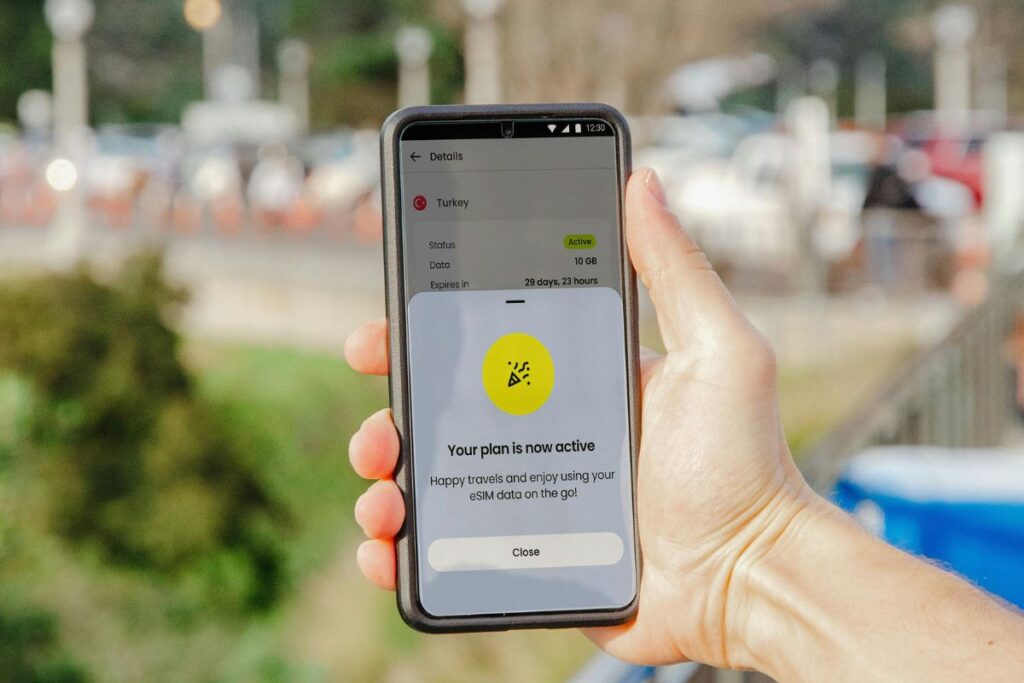
Setting up an eSIM might seem daunting at first, but in reality, it’s incredibly straightforward and significantly more convenient than managing a traditional physical SIM. With the rapid evolution of technology, most modern smartphones, tablets, and even some laptops now support eSIM technology, making connectivity faster, easier, and more versatile.
Why Setting Up an eSIM is Easier Than You Think
Gone are the days of fumbling with tiny SIM cards and paperclips to access your device’s SIM tray. eSIM technology is entirely digital, meaning no physical handling is needed. All you require is a compatible device and a few easy steps, all executed digitally. Modern smartphones from popular brands like Apple, Samsung, Google, and others are increasingly compatible with eSIM technology, eliminating common barriers to adoption.
What You Need to Set Up an eSIM
Before diving into the setup process, ensure you have the following:
- An eSIM-compatible device: Check your device specifications to confirm compatibility. Most recent smartphone models from Apple, Samsung, Google, and many others support eSIM.
- Access to an eSIM activation code or QR code: Provided by your carrier upon purchasing an eSIM plan.
- Internet connection: Essential for activating and downloading your eSIM profile onto your device.
Step-by-Step Guide to Setting Up an eSIM
Follow these easy steps to set up your eSIM:
Step 1: Check if Your Device Supports eSIM
Before anything else, confirm that your device supports eSIM functionality. On iOS devices, you can check this under Settings > Cellular. Android devices typically list compatibility under Network or SIM settings. If unsure, consulting your device’s official manual or contacting your carrier can provide clarity.
Step 2: Obtain an eSIM Plan from a Provider
Once confirmed that your device supports eSIM, choose a carrier that offers eSIM services. Providers usually offer different data plans that cater to your connectivity needs. After purchasing, the provider will supply you with an activation QR code or detailed activation instructions via email or their website.
Step 3: Scan the QR Code or Enter the Activation Details
On your smartphone or device:
- iOS Users: Navigate to Settings > Cellular > Add Cellular Plan. Here, you can scan the QR code provided or enter the activation details manually.
- Android Users: Navigate to Settings > Network & Internet > Mobile Network > Advanced > Add Carrier. Scan your QR code or enter details manually.
Follow on-screen prompts carefully to complete the activation. Ensure you have a stable internet connection during this process to avoid interruptions.
Step 4: Configure Settings for Primary/Secondary SIM Usage (If Applicable)
Many modern devices with eSIM capabilities also support dual SIM configurations, allowing you to use both a physical SIM and eSIM simultaneously.
- iOS: Under Cellular settings, choose your default line for voice and data usage. This configuration helps manage usage seamlessly, particularly useful for separating personal and business lines or managing roaming data efficiently.
- Android: Under Mobile Network settings, set preferences for calling, SMS, and data to optimize your SIM usage according to your needs.
Troubleshooting Common Issues
While eSIM setup is typically straightforward, some common issues may arise:
Device Not Recognizing the eSIM
- Ensure your device supports eSIM and confirm your software is updated to the latest version.
- Restart your device and retry scanning the QR code or entering activation details.
- Check with your provider to confirm the validity of your eSIM profile.
Poor Network Connectivity
- Verify your device is set to use the correct SIM for data usage.
- Move to an area with better signal strength.
- Reset network settings if the issue persists by navigating to Settings and selecting Reset Network Settings.
Switching Back to Physical SIM
- You can easily revert to a physical SIM card if needed. Disable your eSIM from the device settings or remove it entirely if required. Insert your physical SIM and restart the device to automatically switch back.
Tips for Seamless eSIM Setup
To ensure a smooth and trouble-free eSIM experience, keep these tips in mind:
- Keep Your Physical SIM as a Backup Initially: Until you’re confident your eSIM works perfectly, maintain your physical SIM as a backup.
- Double-check Carrier Support Before Traveling: Especially useful for international travelers. Confirm eSIM support with local carriers at your destination to avoid connectivity issues.
Setting up an eSIM is a straightforward and rewarding process that significantly enhances your device’s connectivity capabilities. The digital nature of eSIM makes it convenient, safe, and highly flexible, ideal for frequent travelers, remote workers, or anyone seeking simplified connectivity management. Follow this guide carefully, troubleshoot easily encountered issues, and embrace the convenience of digital SIM technology today.
Ready to make the switch? Take advantage of eSIM technology now and experience seamless connectivity without physical constraints.